Connecting a Yaesu FTDX10 to a computer and using it directly with Log4OM is one of the most useful upgrades you can make to a modern amateur radio station.
Once everything is configured correctly, simply turning the radio’s VFO will automatically update the frequency The “channel” a station transmits on. displayed in Log4OM.
No external CAT The link that lets a computer control the radio. interface is required. The FTDX10 already includes the necessary USB interface; all we need is the correct driver, the right COM port and a properly configured CAT connection.
In this guide I will go through the entire procedure, from installing the USB driver to the final communication test.
1. Install the Yaesu FTDX10 USB Driver
The first step is to install the Virtual COM Port driver used by the FTDX10.
The radio uses a Silicon Labs CP210x USB-to-UART interface. The appropriate Windows driver can be downloaded from the Yaesu support page for the FTDX10.
It is best to install the driver before connecting the radio to the computer via USB.
After downloading the CP210x driver package, extract the ZIP file.
At first, the installation folder may look a little unusual because there may not be a traditional setup.exe installer.
That is normal.
The file we need is:
silabser.inf
Windows normally identifies it as an Setup Information or Installation Information file.
Right-click on:
silabser.inf
and select:
Show more options → Install
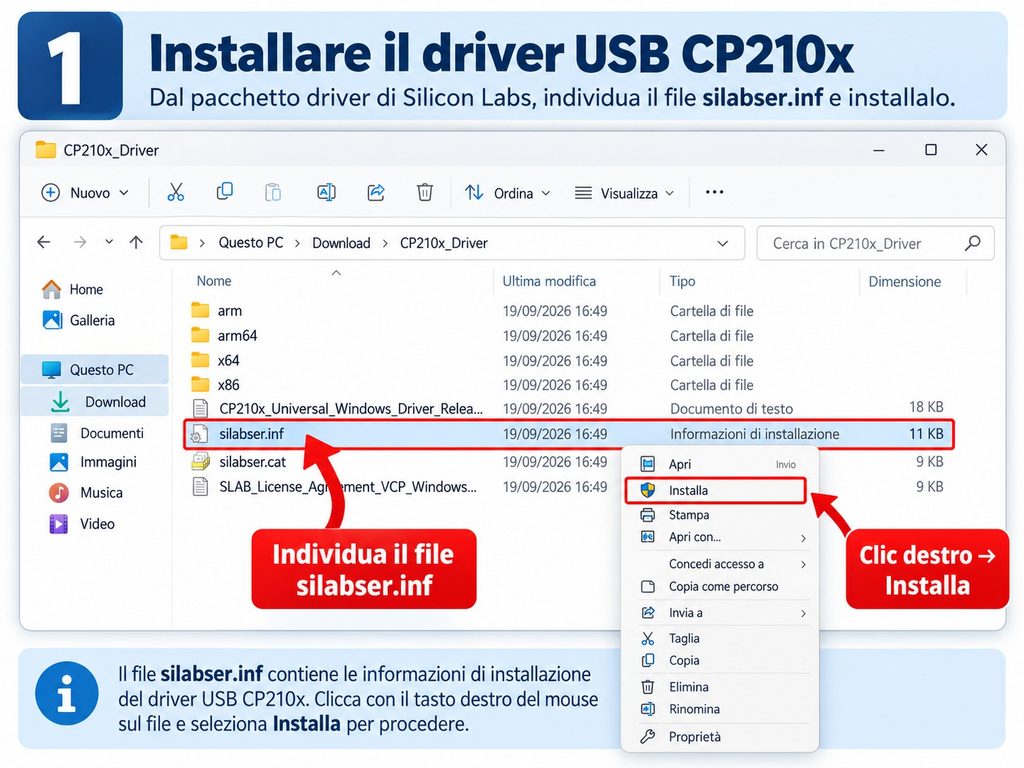
Once the driver installation is complete, connect the FTDX10 to the computer using a proper USB A-to-B data cable, then switch the radio on.
2. Find the Correct COM Port
This is one of the most important steps in the entire configuration.
With the FTDX10 connected and powered on, open:
Windows Device Manager → Ports (COM & LPT)
You should see two Silicon Labs virtual ports associated with the radio:
Enhanced COM Port
and
Standard COM Port
For CAT The link that lets a computer control the radio. control we need to use the:
Enhanced COM Port
The Enhanced port is the one normally used for CAT communication, including frequency The “channel” a station transmits on., operating mode and radio control.
The Standard COM Port is mainly used for functions such as PTT The push-to-talk button you press to transmit., CW Morse code sent by radio. and digital operation.
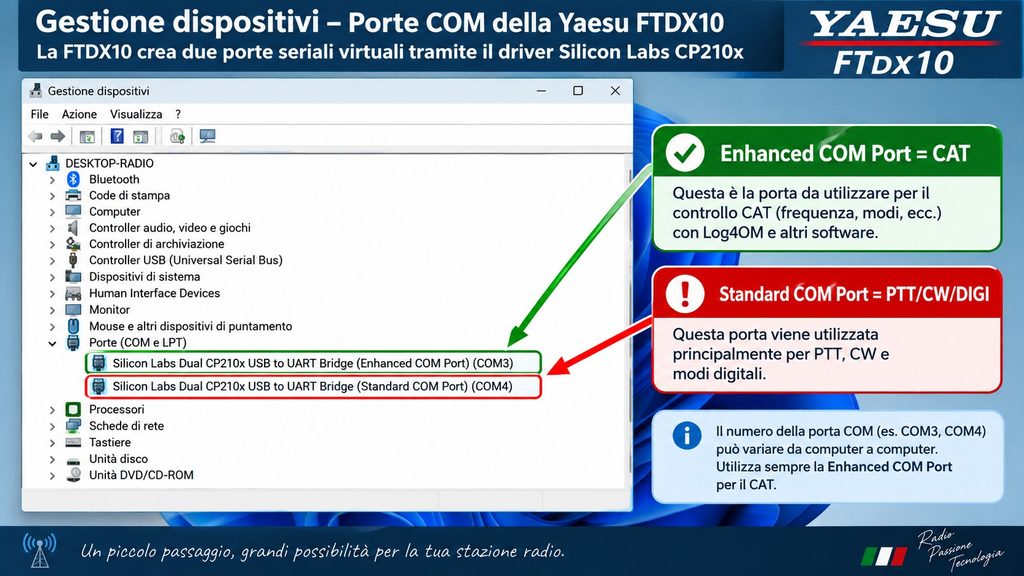
In the example shown in the image:
Enhanced COM Port = COM3
Standard COM Port = COM4
Your computer may assign completely different numbers.
For example, you may see:
COM5
COM7
or even:
COM11
The actual number is not important.
What matters is selecting the port labelled:
Enhanced COM Port
Write down its COM number because we will need it when configuring OmniRig.
3. Configure CAT on the Yaesu FTDX10
Before configuring OmniRig, it is a good idea to set the CAT parameters directly on the radio.
On the FTDX10 go to:
FUNC → OPERATION SETTING → GENERAL
Set the following parameters:
| Setting | Value |
|---|---|
| CAT RATE | 38400 bps |
| CAT TIME OUT TIMER | 1000 ms |
| CAT RTS | ENABLE |
The most important value is:
CAT RATE = 38400
because the exact same baud rate must also be selected later in OmniRig.
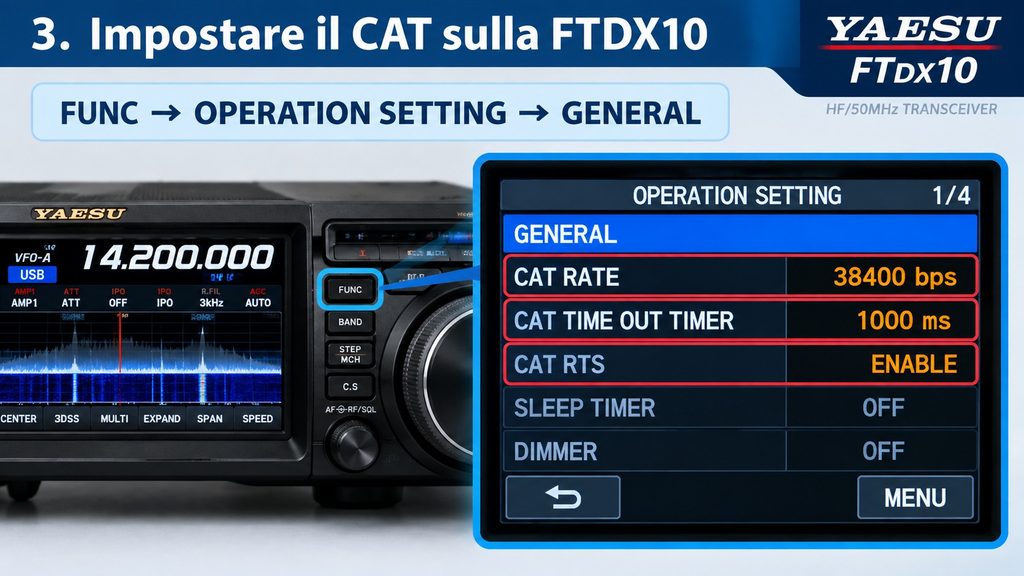
The basic rule is simple:
38400 on the FTDX10 must also be 38400 in OmniRig.
If the two values do not match, CAT communication will not work correctly.
Once these settings have been entered, leave the radio menu.
The radio side of the configuration is now ready.
4. Install OmniRig
The next step is to create the communication link between the FTDX10 and Log4OM.
For this configuration we will use OmniRig.
OmniRig is a free radio-control interface that allows compatible amateur radio applications to communicate with a transceiver A radio that can both receive and transmit. through CAT.
Download OmniRig from the official DX A contact with a very distant station. Atlas website.
When looking at the download page, make sure you install:
OmniRig
and not:
Omni-Rig Client
because they are different programs.
It is also a good idea to install the latest available OmniRig INI files, since they contain updated radio definitions.
After installation, open:
Omni-Rig Settings
and select:
RIG 1
5. Configure OmniRig for the Yaesu FTDX10
Now we reach the most important software configuration.
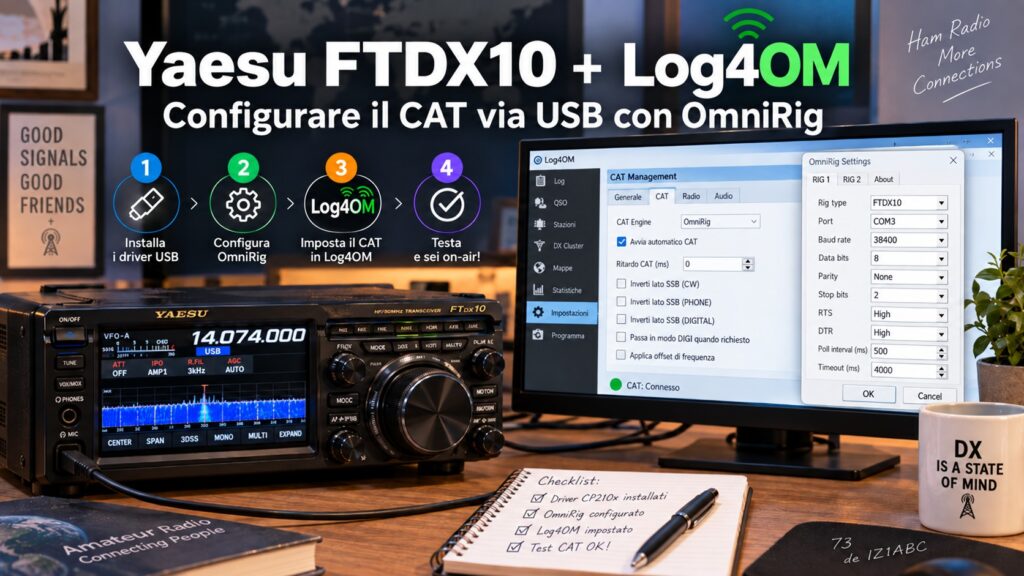
Set OmniRig as follows:
| OmniRig setting | Value |
|---|---|
| Rig type | FTDX10 |
| Port | Enhanced COM Port |
| Baud rate | 38400 |
| Data bits | 8 |
| Parity | None |
| Stop bits | 2 |
| RTS | Handshake |
| DTR | Handshake |
| Poll interval | 500 ms |
| Timeout | 4000 ms |
There is one detail that is particularly easy to miss:
The FTDX10 uses 2 Stop Bits
Therefore, in OmniRig set:
Stop bits → 2
not 1.
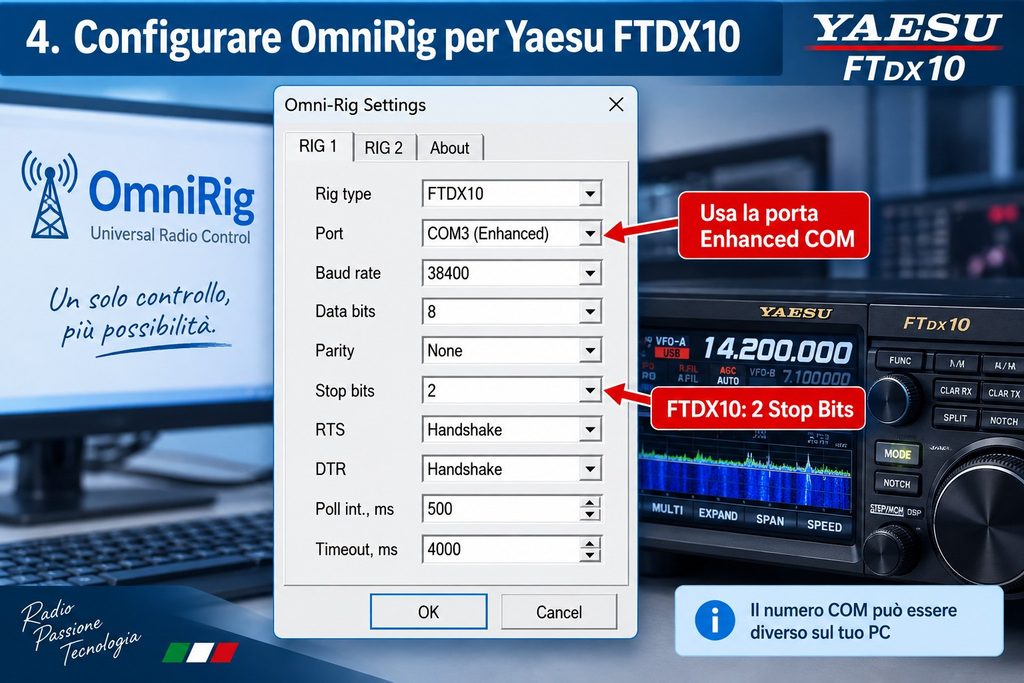
The screenshot uses COM3 as an example.
Do not automatically use COM3 on your own computer.
Instead, select the COM number that Windows previously identified as the:
Enhanced COM Port
After checking all parameters, click:
OK
6. Configure Log4OM
Now we can move to Log4OM.
Open:
Settings → Program Configuration → CAT The link that lets a computer control the radio. Management
Under:
CAT Engine
select:
OmniRig
Then enable:
CAT auto-start
For the initial configuration you can leave:
CAT delay = 0 ms
The other options are not required simply to verify CAT frequency The “channel” a station transmits on. control.

Save the configuration.
If OmniRig was installed while Log4OM was already running, close Log4OM completely and start it again.
7. Test the CAT Connection
At this point the complete communication chain is:
Yaesu FTDX10 → USB → Enhanced COM Port → OmniRig → Log4OM
Switch on the radio and start Log4OM.
For example, tune the FTDX10 to:
14.200.000 MHz Megahertz, millions of vibrations per second: the unit used to measure frequency.
Now slowly turn the main VFO dial.
The frequency displayed in Log4OM should follow the radio automatically.
For example:
FTDX10: 14.200.000 MHz
then turn the dial to:
14.250.000 MHz
and Log4OM should update to the same frequency.
If this happens, the CAT connection is working correctly.
If CAT Does Not Work
Before changing random settings, go through the configuration again in order.
First, make sure OmniRig is using the:
Enhanced COM Port
and not the Standard COM Port.
Then confirm that both the radio and OmniRig are using:
38400 baud
Also check:
Data bits: 8
Parity: None
Stop bits: 2
RTS: Handshake
DTR: Handshake
and on the radio:
CAT RTS: ENABLE
Another common issue occurs when another program is already using the same COM port directly.
Normally, two independent applications cannot open the same serial port at the same time.
If necessary, close any other radio-control software and test OmniRig again.
Enhanced COM Port vs Standard COM Port
Understanding the difference between the two ports is useful, especially if you plan to use digital modes later.
Enhanced COM Port
This is the port normally used for CAT control:
- Frequency reading
- Frequency control
- Operating mode
- Radio commands
For:
Log4OM + OmniRig
this is the port we want.
Standard COM Port
This port is generally used for other serial functions, including:
- PTT The push-to-talk button you press to transmit.
- CW Morse code sent by radio. keying
- Digital-mode applications
The two virtual ports allow the FTDX10 to manage different computer-control functions without requiring an additional external serial interface.
Why Use OmniRig?
One of the main advantages of OmniRig is that it can act as a communication layer between the radio and compatible amateur radio applications.
Instead of every program trying to open the radio’s COM port directly, compatible software can communicate through OmniRig.
A typical setup can therefore look like this:
FTDX10 → OmniRig → Log4OM
and potentially other compatible applications as well.
This can help reduce serial-port conflicts and makes the radio-control configuration easier to manage.
Final Configuration Summary
For quick reference, these are the settings used in this guide.
Yaesu FTDX10
CAT RATE            38400 bps
CAT TIME OUT TIMER  1000 ms
CAT RTS             ENABLE
OmniRig
Rig type       FTDX10
Port           Enhanced COM Port
Baud rate      38400
Data bits      8
Parity         None
Stop bits      2
RTS            Handshake
DTR            Handshake
Poll interval  500 ms
Timeout        4000 ms
Log4OM
CAT Engine     OmniRig
CAT auto-start Enabled
CAT delay      0 ms
Conclusion
Connecting the Yaesu FTDX10 to Log4OM does not require an additional CAT interface.
The FTDX10 already includes the necessary USB serial hardware, so all that is required is the correct CP210x driver, the correct virtual COM port and the right OmniRig settings.
The three settings worth remembering are:
Enhanced COM Port — 38400 baud — 2 Stop Bits
Once everything is configured, normal operation becomes very simple.
Switch on the FTDX10, start Log4OM and the radio frequency will automatically appear in your log.
73 and good DX A contact with a very distant station.!