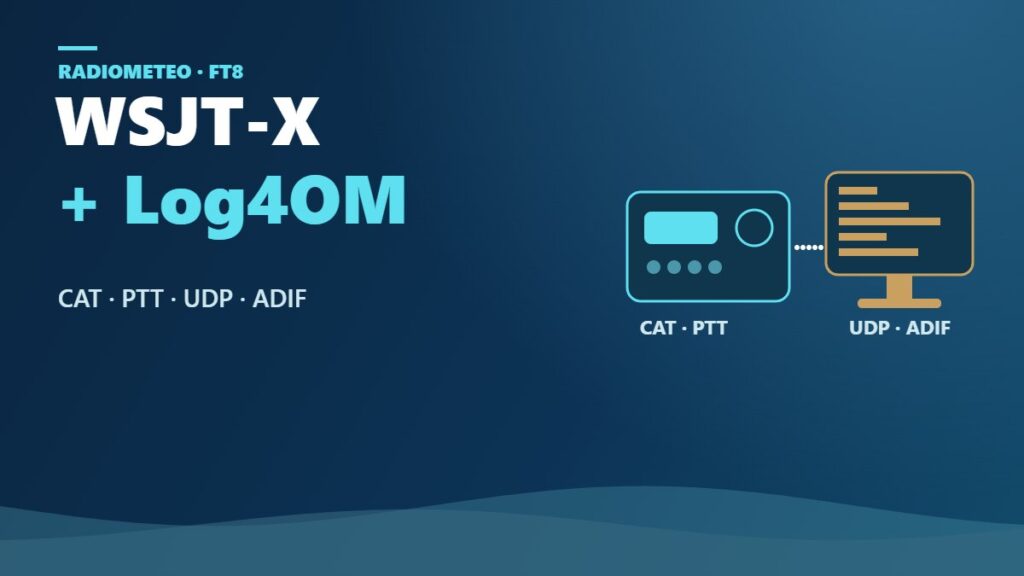
Configuring WSJT-X and Log4OM for FT8 A digital mode: the computer sends and receives short messages even with very weak signals. involves more than simply launching two programs. The chain must work across three distinct levels: the radio and WSJT-X, data exchange between WSJT-X and Log4OM, and the possible presence of additional applications such as JTAlert or GridTracker.
An orderly configuration avoids the most common problems: unsynchronized frequency The “channel” a station transmits on., incorrect mode, unlogged QSOs, and UDP messages being received simultaneously by multiple programs.
Before you start
Install an up-to-date version of WSJT-X from the official WSJT-X download page. The page lists the General Availability release available at the time of checking and refers to the official manual as the main reference for installation and configuration.
For Log4OM, it is advisable to consult the official Resources and manuals section, which includes the general manual, the advanced manual, and documentation specific to JT applications.
Before launching the programs, check that the radio has the necessary connections to:
- receive audio from the computer;
- send transmit audio to the radio;
- control frequency The “channel” a station transmits on. and mode via CAT The link that lets a computer control the radio.;
- handle PTT The push-to-talk button you press to transmit., via CAT or through the method provided by the interface in use.
The names of the audio ports, CAT interfaces, and PTT methods depend on the radio and operating system. There is therefore no universal combination of settings.
Configuring WSJT-X for FT8
Launch WSJT-X and select FT8 A digital mode: the computer sends and receives short messages even with very weak signals. from the Mode menu. During the initial configuration, enter the station identification details and your locator A code of letters and numbers for your little square on the world map, such as JN62.. The program uses this information during decoding and when managing QSOs.
The radio is configured in the section dedicated to CAT The link that lets a computer control the radio. control. Select the correct model or the method required by your system, then set the port and the parameters required by the interface. When the connection is working, WSJT-X must be able to read and change at least the radio frequency The “channel” a station transmits on..
Configure PTT The push-to-talk button you press to transmit. as well, selecting the method that is actually available. On some stations, PTT is handled through CAT control; on others, it uses a separate port on the digital interface. The fact that CAT is working does not automatically mean that PTT is configured correctly.
If the radio uses a USB interface, carefully check the input and output audio devices selected in WSJT-X. The program must receive audio from the receiver The device that “listens” to radio signals. and send the audio intended for transmission to the radio. A working CAT connection alone will not correct an incorrect audio routing configuration.
After saving the settings, check that:
- the frequency displayed by WSJT-X matches the radio frequency;
- the operating mode is the digital mode selected on the radio;
- the received audio level allows decodes to be made;
- the PTT test command, if available, correctly activates transmission;
- the radio does not transmit unintentionally during testing.
The WSJT-X User Guide contains sections covering general configuration, FT8 mode, CAT, QSO A radio contact between two stations. logging, and the UDP protocol.
Connecting WSJT-X and Log4OM via UDP
A direct UDP connection is the most practical solution when Log4OM is the only external program that needs to receive JT data from WSJT-X. WSJT-X can send decodes, operating status, and QSO A radio contact between two stations. information through the UDP server.
In WSJT-X, open File → Settings → Reporting and enable the UDP server. This is where you configure the address and port used for message exchange. The selected values must match those set in Log4OM’s JT section.
In Log4OM, enable the JT message receiver The device that “listens” to radio signals. and enter the same connection parameters used by WSJT-X. The official documentation describes receiving UDP messages and handling QSOs from applications based on the JT protocol in the Working with JT applications manual.
The connection logic is straightforward:
- WSJT-X decodes signals and generates JT events;
- the WSJT-X UDP server sends this information;
- Log4OM receives the data and can propose or log the QSO;
- the final log is managed by Log4OM.
After enabling the connection, test it with an actual decode Turn the signal into text, pictures or sound you can understand.. If Log4OM displays no data, first check that WSJT-X is actually decoding, then verify the address, port, and firewall. A local network error or a parameter that does not match in both programs will prevent communication.
Synchronizing the radio, WSJT-X, and Log4OM
The frequency The “channel” a station transmits on. and mode must remain consistent across all three station components. Primary control should normally be assigned to a single application, avoiding situations where WSJT-X and Log4OM both attempt to control the radio at the same time without a specific reason.
The Log4OM manual describes CAT The link that lets a computer control the radio. configuration, including through OmniRig, as well as the options for synchronizing frequency and digital mode with WSJT-X. The choice depends on the radio, the drivers, and any CAT software already being used at the station.
If you use OmniRig or another shared CAT layer, check that two programs are not opening the same serial port exclusively. When the port cannot be shared, it is preferable to leave CAT control to a single component and distribute the information to the others using the method provided by the software.
A practical test is to change the frequency from WSJT-X and check whether the radio and Log4OM update correctly. Repeat the test by changing band A group of nearby frequencies used for the same purpose, like a lane on a motorway. or mode, without transmitting, to quickly identify incomplete synchronization.
Logging QSOs and the ADIF alternative
WSJT-X can save QSOs in ADIF format. This makes it possible to transfer the data to Log4OM without using a direct UDP connection for logging.
The ADIF workflow is particularly useful when you prefer to keep the decoding software and logging program separate, or when the UDP connection is having problems. In this case, WSJT-X creates the ADIF file and Log4OM imports it according to the procedure specified in its configuration.
The UDP connection and ADIF transfer should not be confused:
- UDP: immediate exchange of events, decodes, status, and QSO A radio contact between two stations. data;
- ADIF: file-based transfer, better suited to later imports or synchronizations.
If you use both systems, check for possible duplicates. A QSO received and logged via UDP should not be imported again from an ADIF file without checking the log.
JTAlert, GridTracker, and UDP conflicts
The most common problem in stations running multiple digital applications occurs when WSJT-X sends the same UDP stream directly to Log4OM, JTAlert, and GridTracker. The Log4OM documentation recommends avoiding multiple competing receivers for the same stream.
The solution is to designate a single primary receiver The device that “listens” to radio signals.. Other programs should receive the data through rebroadcasting or ADIF forwarding, where supported by their respective configurations.
An example of an orderly architecture is:
- WSJT-X sends UDP messages to a primary program;
- the primary program forwards the data to the other applications;
- Log4OM remains the log manager and does not receive a second independent copy of the same QSO A radio contact between two stations..
Alternatively, if Log4OM is the only external program being used, a direct WSJT-X–Log4OM connection is sufficient and reduces the number of possible points of failure.
Common problems and quick checks
WSJT-X does not control the radio. Check the model, CAT The link that lets a computer control the radio. port, interface parameters, and port availability. If the radio is controlled by OmniRig or another program, check which application actually owns the connection.
The radio changes frequency The “channel” a station transmits on., but Log4OM does not update. WSJT-X CAT control may work even when Log4OM is not receiving the correct data. Check the UDP connection and Log4OM’s CAT configuration separately.
Log4OM does not receive decodes or QSOs. Check that UDP reporting is enabled in WSJT-X and that the address and port match in both programs. Also check for any firewalls and for another program configured as a direct receiver The device that “listens” to radio signals..
PTT The push-to-talk button you press to transmit. does not work. CAT and PTT may use different methods. If the radio changes frequency but does not transmit, check the PTT method, the associated port, and the audio or serial interface being used.
The QSO appears twice in the log. It was probably logged via UDP and then imported again from ADIF, or two applications are forwarding the same event to Log4OM. Leave only one logging path enabled.
The frequency or mode is incorrect in the log. Check synchronization between the radio, WSJT-X, and Log4OM before logging any more QSOs. CAT configuration and digital mode may depend on the radio model and the intermediate software being used.
Recommended configuration
For an FT8 station consisting only of WSJT-X and Log4OM, the most straightforward configuration is:
- radio connected to WSJT-X via CAT, audio, and PTT;
- WSJT-X configured for FT8 with the correct station details and locator;
- UDP server enabled in WSJT-X;
- Log4OM configured as the JT message receiver;
- a single path for logging QSOs;
- ADIF used as an alternative or as a controlled transfer procedure.
If JTAlert or GridTracker is also used, it is best to plan the data path first and only then enable the connections. Digital station stability depends more on a simple, coherent chain than on the number of programs running at the same time.